Junctions
A junction is the mesh that joins roads where they meet. World Toolkit generates it from the roads' layers: lanes, borders and sidewalks continue into the junction, and the middle is filled with a core surface.
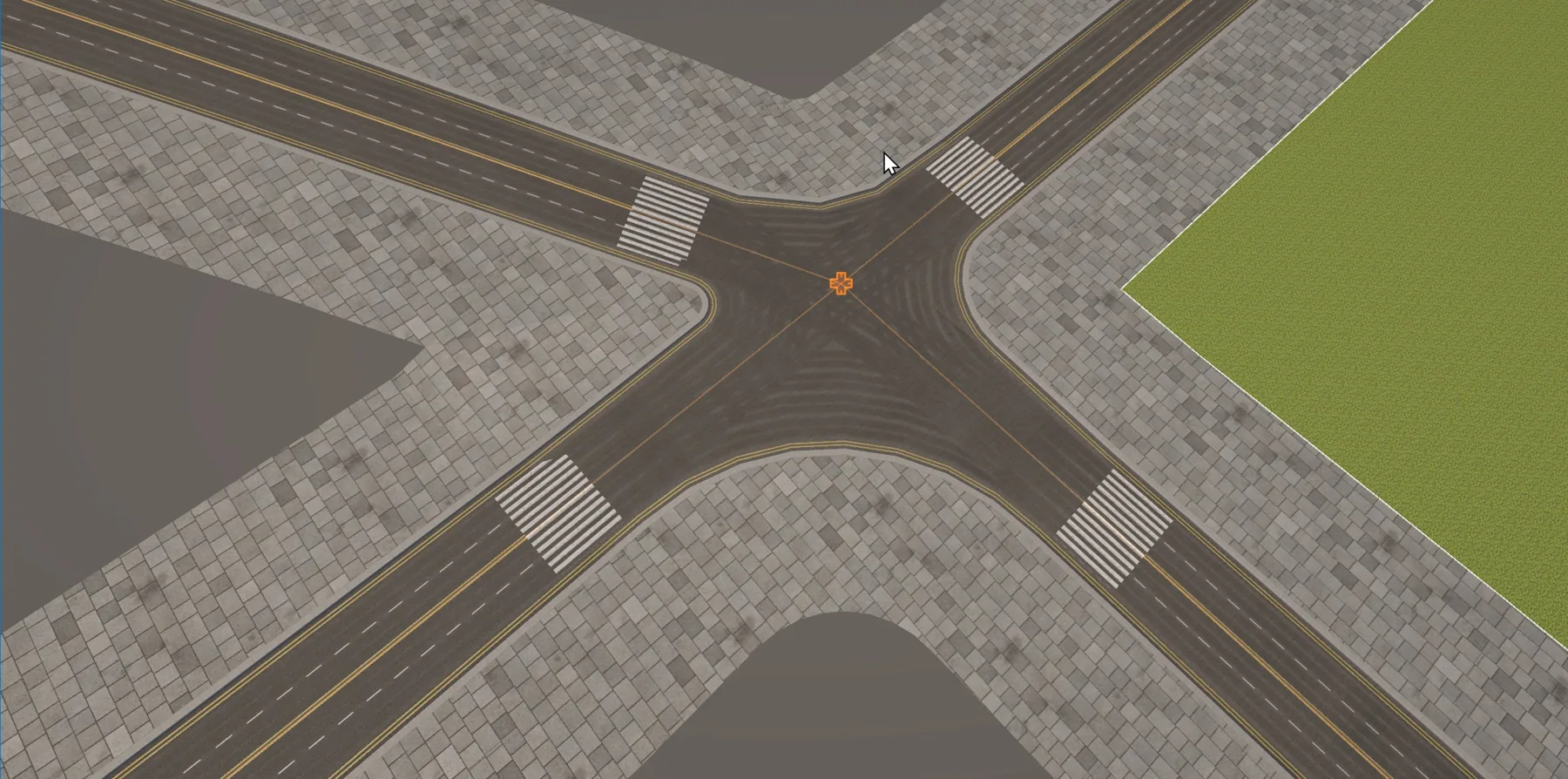
Creating junctions
Junctions are created when roads meet:
- Draw a road and click on another road or on a junction. See Creating Roads.
- Drag a road's knot onto another road, or onto a junction.
- Select linked splines and use Create Roads/Junctions from Selection.
Behind the scenes, the roads' knots are linked with a Link Group, so moving the junction moves all connected road ends together.
New junctions start with the settings of the New Roads rules. See Where junction settings come from.
Junction settings
- Junction Core Resolver
- How the core, the middle of the junction, is built: Intersections or Delaunay Subdivs. The intersection settings only affect Intersections.
- Continue Road Profile U Vs
- Continues the road surface textures from each road into the junction entrance, instead of restarting them. The center keeps a flat (planar) mapping. Borders are set per conversion, below.
- Fallback Junction Core Material
- The material for core faces that don't continue a road profile. Leave it empty to keep the current one.
- Junction Core UV Scale
- Texture scale of the core.
- Core Subdivision Size
- The size of the triangles inside the core. Smaller values add detail without changing the junction's outline.
- Lock Materials
- Keeps the current material slots when the junction rebuilds.
- Conversion Adjustments, Conversion Arc Mode and Shared Conversion Arc Radius
- The shape of the corners between roads. See Conversions.
- Marking
- A painted area over the middle of the junction, such as a box junction grid. See Junction marking.
- Mute
- Roads ignore this junction, as if it weren't there; it still rebuilds its own mesh. Muted junctions are outlined with a red box in the Scene view.
Conversions
A conversion is where the borders of two neighbouring roads meet inside a junction, for example the curb going around a corner.
Conversion Arc Mode sets how the radius of each corner is chosen:
| Mode | What it does |
|---|---|
| Per Conversion | Each conversion uses its own Conversion Arc Radius. |
| Shared Radius | Every conversion uses the junction's Shared Conversion Arc Radius. |
| Aligned Mouths | Every conversion starts from the Shared Conversion Arc Radius, then each corner is tuned so that both curb arcs of a road leave it at the same distance. Mouths stay square to their road, even on skewed junctions. |
With a shared mode, each conversion's own Conversion Arc Radius is greyed out. Junctions with only two mouths (two road ends meeting) always use their conversion's own radius.
A junction with only two mouths that meet at an angle is one bend of the road. Its Conversion Arc Radius is the inner curb of the bend, and the outer curb is drawn around the same centre, so the road keeps its width all the way round and both curbs start their curve at the same point of each road.
Each conversion has an entry under Conversion Adjustments:
- Conversion Arc Radius and Conversion Arc Segments
- The radius and smoothness of the curve between the two roads' borders.
- Do Not Collapse To Border Intersection
- On tight corners, the outer border of a conversion can collapse to the point where the two roads' outer borders cross. Turn this on to keep it from collapsing there.
- Continue Border Profile U Vs
- Continues the border textures (curbs, sidewalks) of both roads through the conversion. When it's off, Border Triplanar UV Rotation rotates the border texture instead.
- Two Mouth Transition
- Only for junctions with exactly two mouths, for example where a road changes width or profile. With Override Mouth Distances, First Mouth Distance and Second Mouth Distance set how far from the junction point each road stops, and so how long the transition is. Bias moves the S-shaped transition toward the first road (0) or the second (1).
Junction marking
Marking paints an area over the junction's road surface, between the curb arcs: a box junction grid, a colored area and so on. It's a Mesh Decal Area that the junction creates and keeps in shape.
- Enabled
- Turns the marking on. The junction adds a Junction Marking child object holding the decal, and removes it when you turn the marking off.
- Decal
- A Mesh Decal Area Settings asset with the marking's fill, outline and materials. It's shared by every junction and decal that uses it. Click New to create one, or expand the field to edit it from the junction.
- Inset
- Distance kept from the curbs and from each road's curb line.
- Trim At Kerb Lines
- Stops the marking at each road's curb line, where the curb arcs start, so it stays clear of crossings and lane markings. Turn it off to also cover the junction lead-ins.
Whenever the junction rebuilds, the decal's outline is redrawn to match it.
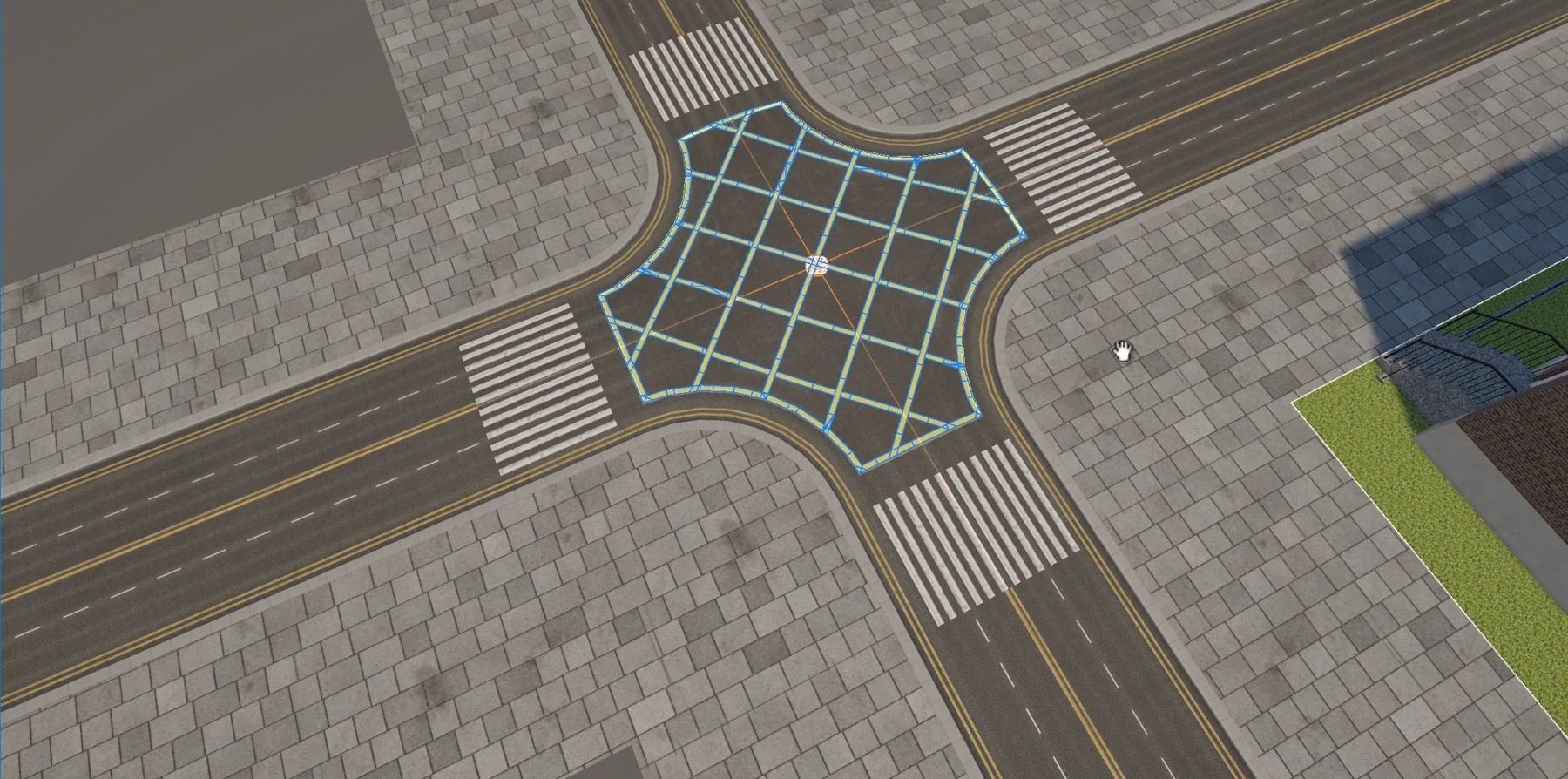
Same marking everywhere
Set Junction Marking in a Road Rules asset to give it to new junctions, or to the junctions you select when you click Apply to Selected.
Markings in junctions
Road markings stop where the road surface is cut at the junction, unless they're set to continue:
- Sub layers and lane divisions with Extend Into Junctions continue over the junction lead-in, up to where the curb arcs start. See Layers.
- A marking inside a border profile, like a no-parking line in a gutter, follows the border around the corner: straight lead-in, conversion arc and lead-out.
- Marking paints the middle of the junction, as above.
- With the Lane Wear Lit shader, the tire tracks follow the lane guides through the junction. See Road materials.
Where junction settings come from
New junctions copy their starting settings from the Junctions section of the Road Rules set under New Roads in the Roads panel:
| Road Rules | Junction |
|---|---|
| Junction Core Resolver, Continue Road Profile U Vs, Junction Core UV Scale, Core Subdivision Size, Fallback Junction Core Material | The same settings. |
| Lock Junction Materials | Lock Materials |
| Conversion Arc Mode | Conversion Arc Mode |
| Default Conversion Arc Radius | Shared Conversion Arc Radius, and the Conversion Arc Radius of new conversions. |
| Default Conversion Arc Segments | The Conversion Arc Segments of new conversions. |
| Junction Marking | Marking |
After that, the settings belong to the junction, and editing the rules doesn't change existing junctions. To update them, select them and click Apply to Selected. See Applying rules.
Intersection settings
These two settings are shared by every junction that uses the Intersections core resolver. They're read from the Junction Intersections section of the New Roads rules: change them there, or pick other rules under New Roads, and those junctions rebuild.
- Intersection Adjacent Pair Angle
- How far, in degrees, two roads can be from pointing in exactly opposite directions and still be paired as neighbours.
- Intersection Vertex Merge Distance
- Merges interior vertices closer than this. Road mouths, arcs and their corners stay fixed. Zero turns it off.
Exporting junction information
Right-click a junction component and choose Export Junction Information... to save a text report of its connections and mesh. It's useful to attach to a bug report about a junction.