Creating Roads
Drawing a road
- In the Roads panel, click Edit Road Points.
- With no knots selected, hold Shift and click in the Scene view to start a new road, then click to add more points.
- Press Esc or right-click to finish. A road needs at least two points.
Press Esc again, when you aren't drawing, to stop editing road points.
New roads use the Road Rules set under New Roads in the Roads panel: they copy its setup and keep a reference to it. See Road Rules.
To continue an existing road, double-click one of its end knots, then click to add points.
Straight segments and rounded corners
The New Splines panel in the Scene view sets how new knots are made. With New Spline Mode set to Linear, roads are drawn as straight segments, and Auto Round Mode can round their corners for you.
Connecting while drawing
- Click on the middle of another road (its spline) to create a junction there.
- Click on an existing junction to connect the new road to it.
- Start or end the new road on the outer edge of another road, or on the side of a junction, to attach it there with an anchored connection.
The junctions and connections are made when you finish the road.
Editing a road
With Edit Road Points active:
- Click spline knots to select them, and drag selected knots or their handles to reshape the road.
- Double-click a road's spline to insert a knot there.
- Drag a knot onto another road to create a junction there, or onto a junction to connect it to that junction.
- Drag a road end onto the outer edge of another road to attach it with an anchored connection.
Knots work the same as on any spline, including the right-click menu.
Select a road to show its lane controls in the Scene view, where you can change lane directions and add or remove lanes. See Lanes.
Converting existing splines
Select one or more spline containers and click Create Roads/Junctions from Selection. Splines become roads that use the New Roads rules, and linked knots become junctions.
Road settings
- Spline Container
- The spline the road follows.
- Rules
- Optional Road Rules. While it's set, the road is generated from the asset's layers and generation settings, and the road's own copies of those settings are hidden. Expand the field's arrow to edit the asset from the road inspector, or click New to create a Road Rules asset and assign it.
- Lane Overrides
-
Appears when the road's Rules have lanes, with one entry per lane (Lane 0, Lane 1 and so on, followed by the layer's name). It changes that lane on this road only, without touching the rules:
- Turn on Override Extra Lanes to give this road its own Extra Lanes count.
- Turn on Override Directions to give it its own Lane Direction, and choose which extra lanes run the other way with Invert Extra Lane 1, Invert Extra Lane 2 and so on.
An override starts from the rules' values. While it's off, its fields are greyed out and show the rules' values.
- Road Layer Groups
- The road's own layers. See Profiles and Layers. When none of the layers has a profile, the road uses its Default Mesh, which then shows up in the inspector; see Default mesh.
- Lock Materials
- Keeps the current material slots when the road rebuilds, instead of resetting them from the profiles.
- Allow Roll
- Lets the road bank (tilt sideways) following each knot's rotation, for banked curves.
- Mute
- Other roads and junctions ignore this road, as if it weren't there; it still rebuilds its own mesh. Muted roads are outlined with a red box in the Scene view. Disabling the component instead only stops the road from rebuilding: the rest of the network still uses it.
Rounded corners
Auto Round Mode rounds sharp turns of straight-segment (linear) splines automatically:
| Mode | What it does |
|---|---|
| Off | No rounding. |
| All | Rounds every turn that reaches Auto Round Corners Minimum Turn Angle, with Auto Round Desired Curve Radius. |
| Per Knot | Only rounds the knots listed in Auto Round Knots (by Path Index and Knot Index), each with its own Desired Curve Radius. The minimum turn angle still applies. |
The radius you set is a target: short segments or nearby corners can make the actual curve smaller. A radius of zero keeps the corner sharp.
Auto Round Knots entries follow their knot when you insert or reorder knots, and the first entry that matches a knot wins. They always belong to the road: when the road's Rules set Auto Round Mode to Per Knot, the road still shows and uses its own entries.
Mesh detail
- Maximum Curve Segment Angle
- How much the road can turn within one mesh segment. Lower values give smoother curves and more triangles. With Allow Roll, it also limits how much the roll changes per segment.
- Minimum Strip Length / Maximum Strip Length
- Limits on the length of each mesh segment along the road. Zero turns a limit off, and the maximum wins when they conflict. Knots, range boundaries and junction cuts are always kept, so they can still make shorter segments.
Joining borders
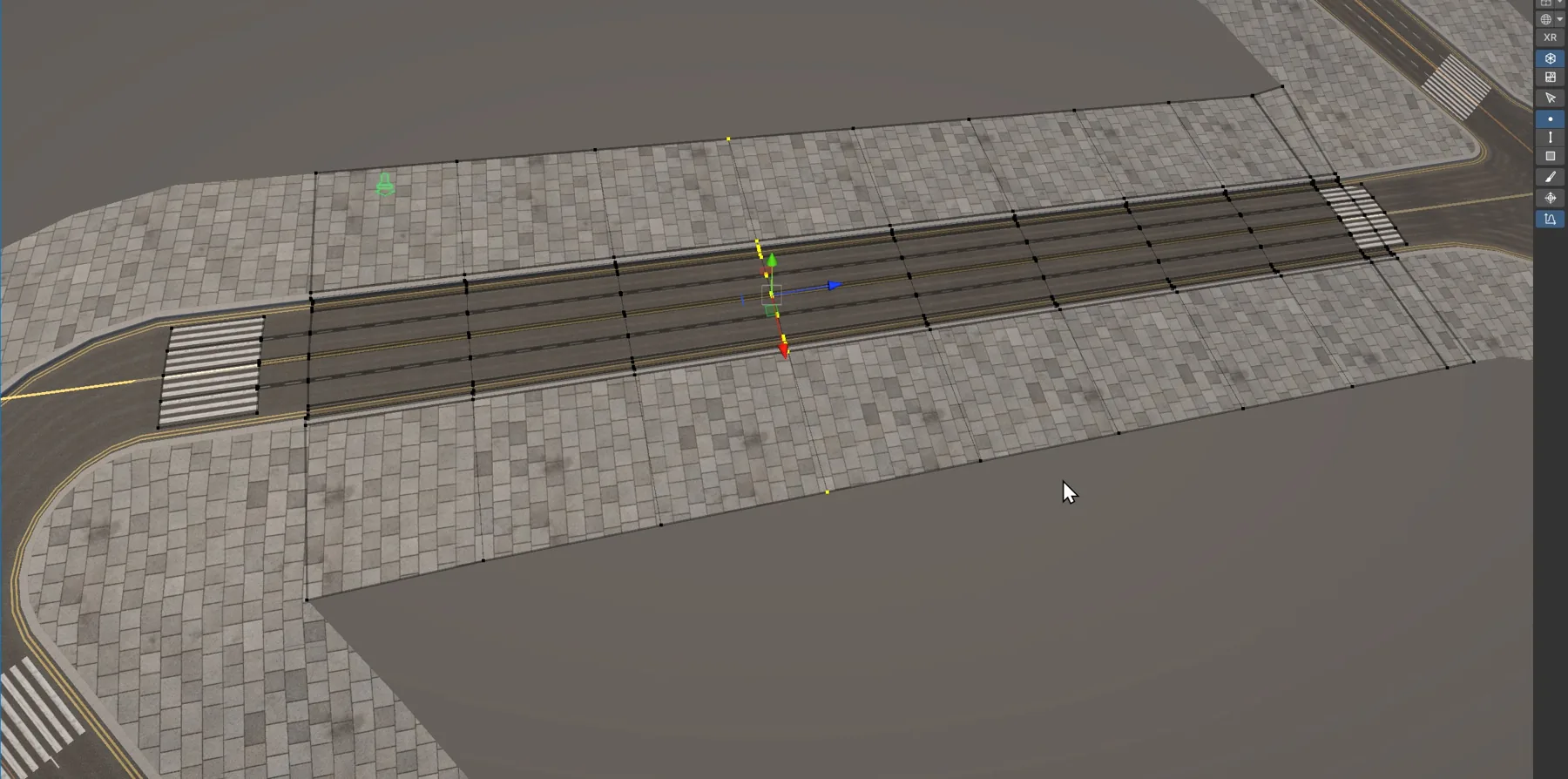
- Merge Overlapping Borders
- Welds border vertices that overlap the borders of this road or of other roads, to close small gaps. Overlapping vertices move to their midpoint. Both roads need it enabled. It also tidies tight turns: where a border would fold over itself, the folded stretch collapses into a single point.
- Border Merge Tolerance
- How close two border vertices must be to merge. Between two roads, the smaller tolerance applies.
While Rules is set, Road Layer Groups, Allow Roll, Default Mesh, the rounded corner settings (except Auto Round Knots) and the mesh detail settings come from the rules asset, and the road hides its own.
Road Rules
A Road Rules asset is a reusable road setup. It holds:
- the layer Groups of the road (see Profiles and Layers),
- the road's generation settings: Allow Roll, Default Mesh, and the Auto Round Corners and Mesh Sampling sections, which work like the road settings above,
- the Junctions settings that new junctions start with, and the Junction Intersections settings. See Junctions.
The Road Preview at the bottom of its inspector shows the road it generates. Corner previews a corner instead of a straight road, the number next to it is the preview length in meters, and Iso, Wire and Reset change the view.
How roads use rules
- When you draw a road or convert splines, the new road copies the rules set under New Roads in the Roads panel and keeps a reference to them in its Rules field.
- While a road references rules, it's generated from the asset. Edit the asset, and every road that references it rebuilds.
- Clear a road's Rules field to make it independent: it keeps the setup it copied, which you can then edit on that road alone.
Lane edits change the asset
On a road that references rules, changing lane directions or adding lanes in the Scene view edits the rules asset, so every road using it changes too. To change the lanes of one road only, turn on its Lane Overrides first: Scene view edits then go to the override instead.
Creating rules
- From a road: right-click the road component and choose Create Road Rules From Current Setup.... The asset gets the road's current layers and generation settings; its junction settings start at their defaults.
- Empty: Assets > Create > World Toolkit > Roads > Rules.
- From a road's Rules field: click New.
Applying rules to existing roads and junctions
- Set the rules under New Roads in the Roads panel.
- Select roads, junctions or both, and click Apply to Selected.
- Confirm with Apply Rules.
Selected roads get the rules' layers and generation settings: their layers, lane directions, extra lanes, ranges, groups and sublayers are replaced. The junctions on those roads get the rules' Fallback Junction Core Material, Conversion Arc Mode (with Default Conversion Arc Radius as their shared radius) and Junction Marking. A junction shared by roads with different rules keeps the last ones applied.
Selected junctions get all the rules' junction settings, and every conversion gets the rules' Default Conversion Arc Radius and Default Conversion Arc Segments. Their other conversion adjustments are kept.
Roads that reference rules
Apply to Selected copies the rules into a road's own settings. A road that references rules in its Rules field keeps being generated from those, so to switch it to other rules, change its Rules field instead.